
Simulate any Windows version online: 3.1, 95, XP, Vista, 10 and more
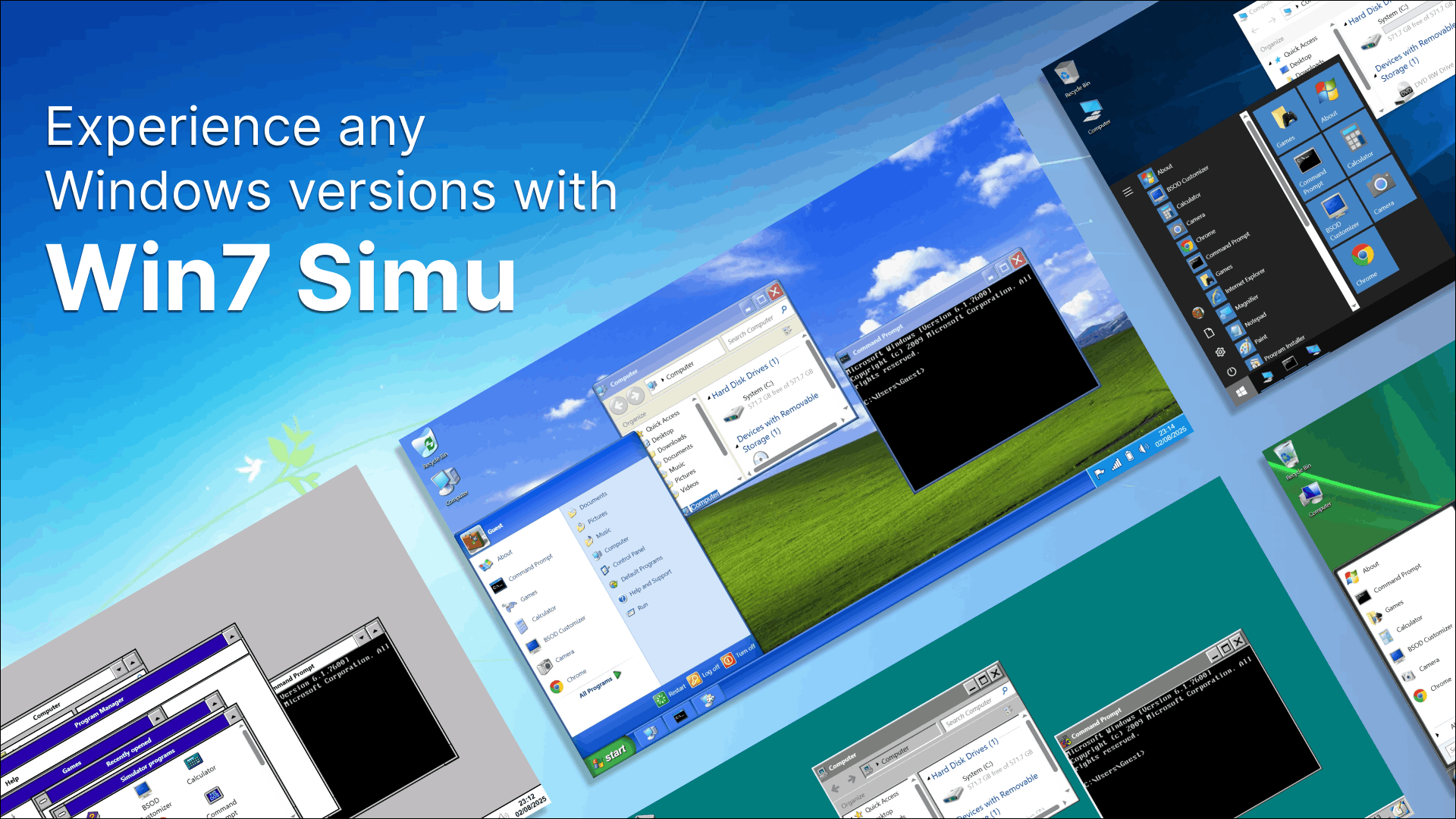
Ever felt the urge to revisit Windows XP's iconic blue skies, or curious what Windows Vista actually looked and felt like? Maybe you just want to show a friend what Windows 10 looks like without setting up a virtual machine. Whatever the reason, simulating old and new Windows versions online is easier than you think, and you do not need to install a single thing.
Win7 Simu is a browser-based Windows simulator that has grown far beyond its original Windows 7 roots. It also ships themes for virtually every major Windows version in history, from the ancient Windows 3.1 all the way to Windows 11. This guide walks through each era and what you can expect from it.
Note
All themes mentioned here can be applied through the Personalize settings in Win7 Simu. Some are free, and some are part of premium bundles.
Windows 3.1, 95, 98 and 2000: the classics
Long before the glossy Aero glass effect or the flat Metro look, Windows had a very different personality.
The Windows 3.1 theme replaces the Start menu with the classic Program Manager, giving you that authentic early-90s desktop feel. The Windows 95 and Windows 98 themes bring back the gray taskbar, beveled buttons, and that unmistakable visual style that a whole generation grew up with. Windows 2000 rounds out the era with a slightly more polished take on the same design language.
These are perfect for nostalgia trips or for giving younger users a taste of what computing looked like before the turn of the millennium.
Windows XP simulator
Windows XP is arguably the most-loved Windows version of all time, and it has one of the richest theme offerings in Win7 Simu.
The base Windows XP theme delivers the iconic Luna interface with the green Start button, colorful taskbar, and that famous bliss wallpaper aesthetic. But if you want to go deeper, there is a full bundle of XP variants:
- Windows XP (Royale) and Royale Noir for the sleek dark and blue media center look
- Windows XP (Silver) and Zune for the alternate color schemes Microsoft shipped but few people ever used
- Windows XP (Olive Green) and Embedded for even more obscure flavors
No other online Windows simulator covers this much XP territory.
Windows Vista simulator
Windows Vista has a complicated reputation. It was slow and buggy at launch, but it also introduced the stunning Aero glass interface that Windows 7 later refined and perfected. The Windows Vista theme in Win7 Simu captures that glossy translucent look, letting you appreciate the visual design without any of the performance headaches of the real thing.
This is also a good way to understand why Windows 7 felt like such a relief when it arrived.
Windows 7: the heart of Win7 Simu
This is where Win7 Simu started and where it still shines brightest. The default experience is a faithful recreation of the Windows 7 Aero interface, and there are several variants to choose from:
- Windows 7 for the full Aero glass experience
- Windows 7 Basic for the non-glass version used on lower-end hardware
- Windows 7 Classic for the retro Windows 2000-style look within Windows 7
- High Contrast Black and High Contrast White for accessibility-focused themes
Beyond the themes, Win7 Simu also faithfully simulates a wide range of Windows 7 apps including File Explorer, Paint, Windows Media Center, Chess Titans, and more.
Windows 8 and 8.1 simulator
Windows 8 is remembered mostly for the controversial Start Screen that replaced the traditional Start menu. The Windows 8 theme in Win7 Simu actually replicates this by swapping the Start menu for the tile-based Start Screen, which makes it one of the more technically interesting themes available. The Windows 8.1 theme restores a bit more familiarity while keeping the flat Metro look.
Worth trying just to remind yourself why everyone was so relieved when Windows 10 brought back a proper Start menu.
Windows 10 simulator
Windows 10 is the most widely used version of Windows today. The Windows 10 theme in Win7 Simu brings the flat, dark-accent taskbar and the familiar Start menu layout that billions of people use daily. It is handy for demonstrations, screenshots, or just switching up the look of your simulator session.
Windows 11 simulator
Windows 11 is the latest release from Microsoft, and it is represented in Win7 Simu with two themes: a light variant and a dark variant. Both feature the centered taskbar and rounded corners that define the Windows 11 aesthetic.
Trying it inside Win7 Simu is a good way to preview the look without upgrading your actual machine or worrying about hardware compatibility requirements.
Bonus: the versions that never were
Win7 Simu also covers a couple of pre-release Windows builds that most people never got to use:
- Windows Longhorn (Slate) and Windows Longhorn (Plex): the early development builds that eventually became Windows Vista
- Windows Whistler: an early build that preceded Windows XP
These are a genuinely rare treat for Windows history enthusiasts.
How to switch themes in Win7 Simu
- Open Win7 Simu
- Right-click the desktop and select Personalize, or go to Start > Control Panel > Personalize
- Browse the available themes and click one to apply it instantly
And that is all it takes. No downloads, no installations, no virtual machines. In just a few clicks, you can experience the full history of Windows right in your browser.
Whether you are revisiting childhood memories, doing research, or just curious about Windows history, Win7 Simu covers the full timeline in one place. If you have never tried it before, head over to win7simu.visnalize.com and give it a go. If you have questions or feedback, feel free to leave a comment below.


