
Play Windows 7 games online free: Solitaire, Minesweeper, Chess Titans and more
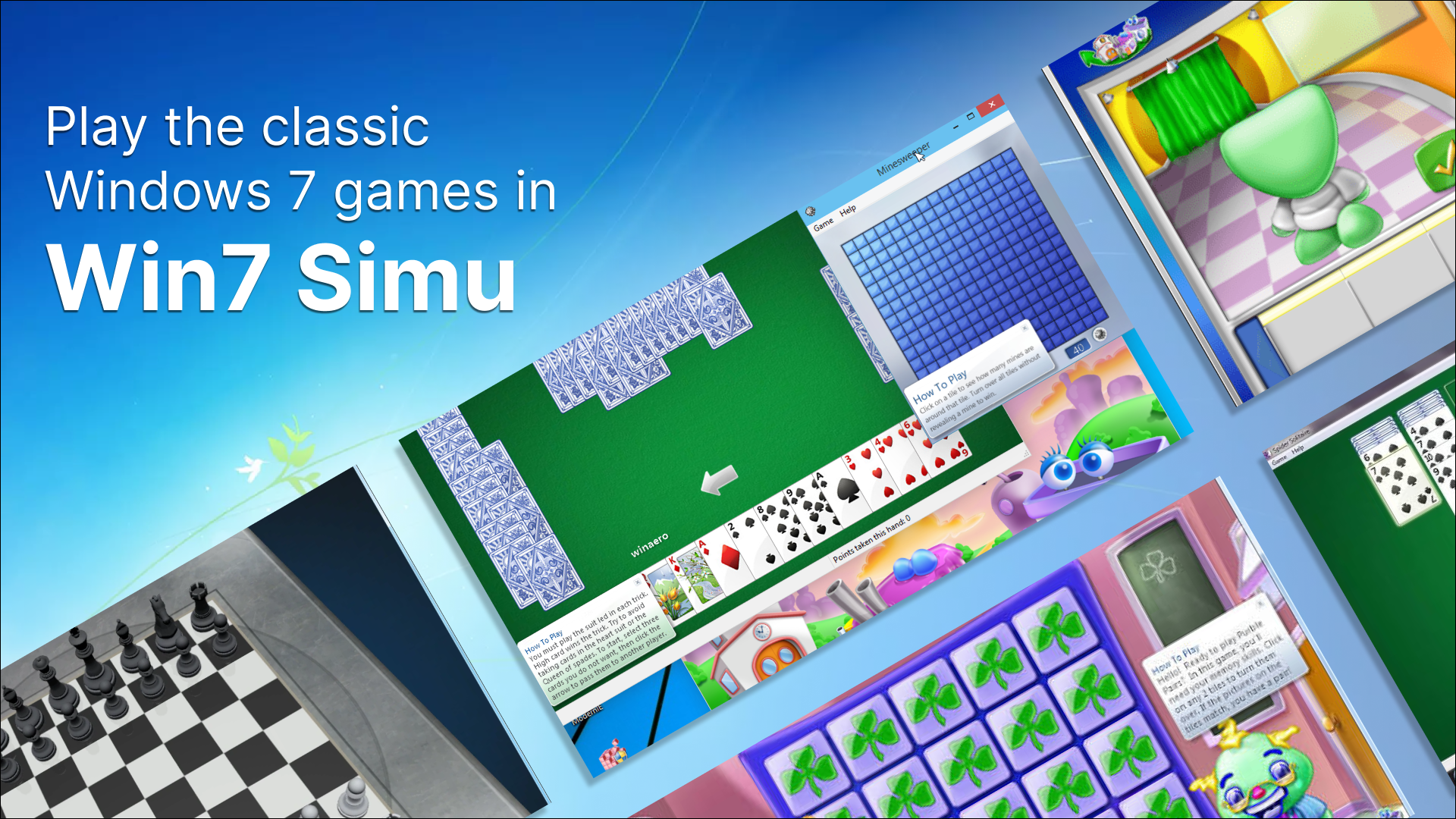
The built-in games were, for a lot of people, the best part of Windows 7. Solitaire during a slow afternoon, Minesweeper on a school computer, Chess Titans showing off 3D graphics that felt impossibly fancy in 2009. Then Windows 8 arrived, the games were quietly removed, and the replacements came with ads and sign-in prompts.
The good news is that you do not need an old PC, a virtual machine, or a sketchy "Windows 7 games download" pack to play them again.
The games available in Win7 Simu
| Game | What it is | Notable features |
|---|---|---|
| Solitaire | The Klondike card game that defined office procrastination | Classic gameplay, multiple game modes |
| Minesweeper | Clear the minefield without detonating a mine | Classic gameplay, multiple difficulty levels |
| Chess Titans | The 3D chess game from Vista and Windows 7 | 3D and 2D views, 10 computer difficulty levels, local two-player, customizable board and pieces |
| Purble Place | A suite of three children's mini-games | Purble Pairs, Comfy Cakes and Purble Shop, each with difficulty levels |
| Classic Tetris | A bonus game, not part of real Windows 7 | Classic falling-block gameplay |
Every one of these runs inside the simulator itself, in the same window frames, with the same Aero look. They are not links out to some other website.
Windows 7 Solitaire online
Solitaire is the one people search for most, and for good reason: it shipped with Windows for over two decades before being pulled out and turned into a separate store download.
The Solitaire in Win7 Simu is the Klondike game you remember, with the green felt background, the card-flipping animation, and multiple game modes. It was one of the earliest games added to the simulator, back in version 2.12.0 in 2021, and it has been refined steadily since.
Windows 7 Minesweeper online
Minesweeper needs no explanation for anyone who used a Windows PC before 2012. Left-click to clear, right-click to flag, and try not to lose on the first move.
The recreation keeps the original gameplay rules and the classic difficulty levels, so your muscle memory for reading a 3 surrounded by two flags still applies. On a touchscreen, holding your finger acts as the right-click for placing flags.
Chess Titans online
Chess Titans is the most technically ambitious of the bunch. The original was built by Oberon Games as a showcase for hardware-accelerated 3D graphics in Windows Vista, and it carried over into Windows 7.
Recreating it in a browser meant extracting the original 3D models from the game's .DLL file, converting a deprecated DirectX format into something the web understands, and rendering the whole thing with WebGL. If you want the full technical story, including the chess engine and the move-search algorithm behind the computer opponent, we wrote it up in Implementing Chess Titans in Win7 Simu.
What you get in the app:
- Ten difficulty levels for the computer opponent, from "I am learning the rules" to genuinely difficult
- A local two-player mode for playing against someone on the same device
- Both the original 3D perspective and a top-down 2D view, which is far more practical on a phone
- Graphics settings to dial performance up or down, plus customizable board and piece appearance
Purble Place online
Purble Place was aimed at children, and it is the game that gets requested with the most disproportionate nostalgia by people who are now well into adulthood. All three of its mini-games are in Win7 Simu:
- Purble Pairs, a memory matching game
- Comfy Cakes, the cake assembly line where you match a customer's order
- Purble Shop, where you deduce a hidden character's features
They arrived one at a time over a couple of years, with Comfy Cakes completing the set. Each has its own difficulty levels, exactly as in the original.
What about Spider Solitaire, FreeCell, Hearts and Mahjong Titans?
Being straight about this: they are not in the app yet.
Windows 7 shipped eleven games in total. Win7 Simu currently covers Solitaire, Minesweeper, Chess Titans and Purble Place. Spider Solitaire, FreeCell, Hearts, Mahjong Titans, and the three Internet games (Backgammon, Checkers and Spades) have not been recreated.
Games are among the most time-consuming things to build in a simulator, because each one is effectively a full app with its own rules, animations, assets and edge cases. Chess Titans alone took months. They do get added over time, though, and the priority order is shaped heavily by what people ask for, so requests genuinely matter. The FAQ page explains how to send one, or you can just leave a comment on this post.
Why not just download the original games?
This is the alternative most search results point to, and it deserves an honest comparison.
The Windows 7 games can technically be extracted from a Windows 7 installation and made to run on Windows 10 or 11. Plenty of sites offer pre-packaged installers to do it for you. Two problems come with that route:
- Trust. You are running an unsigned installer, from an unknown third party, containing files repackaged from a Microsoft product. Some of these packages are clean. Some are bundled with adware. From the outside, they look identical.
- Portability. It only works on a Windows PC. It does nothing for you on a phone, a tablet, a Chromebook, a Mac, or a locked-down work or school computer.
A browser-based simulator sidesteps both. Nothing is installed, nothing needs administrator rights, and it works on anything with a modern browser. The trade-off is that these are recreations rather than the original binaries, so they are close but not byte-identical to what shipped in 2009. If that distinction matters to you, our post on simulators versus emulators covers the reasoning in more detail.
How to open the games
- Go to win7simu.visnalize.com, or install the Android app
- Wait for the boot sequence, then click the suitcase icon to log in as Guest (creating an account is optional and only needed for syncing settings)
- Open the Start menu from the taskbar, or press Alt + W on a keyboard
- Pick a game from the program list
To keep a game within reach, hold your finger on it (or right-click it) in the Start menu and choose Send to Desktop for a permanent shortcut. A full list of shortcuts lives on the keyboard shortcuts page.


